Showing posts with label iOS. Show all posts

Tuesday, August 16, 2016

[iOS Recipe] No. 2 - Handy Shortcuts


Very often, I'm seeing on iPhone screens of the people around me this small faint black square superimposed on top.
And so I learned that some are afraid of spoiling their home buttons if they are pressed too many times.
Such virtual button will minimise the use of the physical home button, thereby prolong its lifespan.

But this black square is too distracting to me, especially when I'm playing games.
It seems that there's a neat trick that does the same thing without having the black square appearing.

Since iOS 8, widgets are supported in the Notification Centre.
There are many apps in the App Store that allows user to create shortcuts icons that appears in the Notification Centre widgets.

One of them is AirLaunch.

 
The app allows the user to add shortcuts to contacts, web urls, apps and "System Actions".


The user can choose from a variety of System actions and one of which is the "Home Button".
When the Home Button is selected, it will appear as an icon in the Notification widget.

So, whenever you are in an opened app or game and you want to exit out to the home screen, you just have to swipe down to bring up the Notification Centre and click on the "Home" icon.
That will bring you to home screen without pressing the physical home button.

There are other similar apps such as Go Launcher, etc.

I love these apps a lot and use them on a daily basis.

Sunday, August 14, 2016

[iOS Recipe] My Post-PC Era Begins

I haven't updated this blog in about two years now.  I'm gonna start this series of "iOS Recipe" articles showing you guys how I make use of iOS and my iDevices in my daily life.

To start off, I'm gonna announce the beginning of my "Post-PC Era" in my daily life.


I've took the plunge and got the 12.9" iPad Pro.  As I foresee I'll be keeping lots of videos and images on it, I've got the 128GB model.

Of course, an iPad Pro alone does not effectively makes me Post-PC.  So, I've got a few accessories to go along with it.
Here they are as shown in the picture.


Let's list them down here:
  1. iPad Pro 12.9" 128GB
  2. Foldable leather casing
  3. Magnetic Bluetooth full size keyboard that comes with the foldable leather casing
  4. 2-in-1 stylus with ball point pen
  5. Mini Bluetooth speaker
  6. iFlash Lightning micro SD card adaptor
  7. CloudFTP WIFI wireless USB device
  8. iPhone SE
With the above accessories, my use cases and needs are satisfied.
Here's the list of my use cases:
  1. Big screen display that shows more content on a single screen (the 12.9" iPad)
  2. Ease of text input (the Bluetooth keyboard)
  3. Precise interaction with the touch screen (the stylus)
  4. Music listening at close distance when the iPad is charging at a distance (the mini Bluetooth speaker)
  5. Reading large document and streaming videos from micro SD card (the iFlash Lightning micro SD card adaptor)
  6. Backing up documents to micro SD card (the iFlash Lightning micro SD card adaptor)
  7. Reading large document and streaming videos from USB thumbdrive (the CloudFTP WIFI wireless USB device)
  8. Whatsapping from the big screen iPad (the iPhone SE)
So far, a few days into my usage, I did not touch my Acer Windows 10 laptop at all.

To conclude, I can say I can very much depend totally on the iPad Pro and accessories to archive my daily PC tasks that I used to do with my Acer laptop.

But, I being a Software Engineer that does occasional coding stuff with Visual Studio for C# and Netbeans for Java programs, I will still need to fall back to my Acer laptop for those.

Here are the individual shots of the various accessories:


As for battery consumption:
I'm able to get 9 hours plus of usage after full charge with 23% of battery juice left.
Not bad at all.


That's it for my first post on [iOS Recipe].
Watch out this space for more tips and tricks that I've encountered and used in my daily life routine.

Note: This blog article is full written using the iPad Pro with the stylus and physically keyboard.

Thursday, January 9, 2014

Another Widget for my iPhone

The jailbreak for iOS 7 has been released for near a month now. New tweaks keep pouring in.
One of the latest tweaks which I love a lot is "Live Weather Icon".
It changes the static icon picture of the stock Weather app into a live animated update of the weather condition of the current location.

It shows three information:
1) the weather condition, eg Cloudy
2) an animated image such as raining droplets and moving cloud, etc
3) the temperature

It's particularly useful for me as the workplace that I work in doesn't have windows and I've no vision to whether it's raining or now.

And when I put this icon beside the stock live Clock on the first home page, it feels right at home!


Wednesday, January 16, 2013

An iOS App Offering Alternative to Widget Functionality

iOS doesn't support Widgets like Android does.

The app, "My Dashboard" for iOS though not bringing widgets functionality to iOS, does provide multiple apps content to be put in a "dashboard" layout which is user-configurable.
For iPhone version, you can arrange up to 2 app stacking vertically per screen.
You can have up to 8 on iPad.

There are quite a number of app content that are supported out of the box:

Facebook, Twitter, Flickr, Instagram, Photo, RSS, Calendar and Weather, to name a few.

Friday, October 12, 2012

My iPhone 5 Daily Usage

I've the iPhone 5 for roughly 3 weeks now.
Here's a breakdown of the things I do on it... Graphically.

As can be seen from the chart, I use the iPhone a lot for Music, Gaming and Apps.
- Music: because of iPhone's great sound quality. (with a music app that provides customised graphic equalizer)
- Gaming: because the graphic chip in iPhone 5 has significantly improved over its predecessor, iPhone 4's (which itself is already awesome)
- Apps: because I still prefer iOS's intuitive touches(pun not intended) to apps functionalities such as "Badge Notification", "Swipe to Delete", "Status Bar Tap to Top of Page", etc.

One thing to note is the low percentage for net browsing.
I generally don't use the iPhone much for surfing net. One of the reasons why a bigger size screen is not necessary for me.

Next, here's the breakdown for the Social Networking app usage for me.

Google+ is slowly taking over my social networking life because of the great community there and the quality of the mobile and PC app for Google+.

And yes, the iPhone 5 is taking over my life ... slowly but surely ...

Monday, September 24, 2012

My iPhone 5 Review (Part 2)

See also: My iPhone 5 Review (Part 1)

Map Revisited

To further confirm the turn-by-turn accuracy, I tested it out again, this time over a longer 31km distance.

Upon entering the destination, the system gave me 3 route options. The route I took was not the default system-picked one.
This way, I'll be able to test its re-routing capability.
The system was quick to start a re-routing seconds after I deviate from its default route.
The update was fast and accurate throughout.

So far, after tested the turn-by-turn three times, I'm quite comfortable to use it on a real unknown destination.

One good feature of Apple Maps Turn-by-Turn is its support for "Lock Screen Mode".
In normal mode, the app will show the usual navigation on the map.
To operate it in Lock Screen Mode, while the navigation is going on, press the Sleep button to lock the screen.
The lock screen appears with the maps slightly dimmed. When timeout occurs, the screen goes to sleep turns black.
When the app reaches a point for a navigation voice announcement, the screen will wake up to the lock screen and an info bar will be shown above.
I thought this is an ingenious implementation that will save quite a considerable amount of battery as the screen will be off when travelling on a long expressway, which I did on the 24km-long PIE on the way to Jurong.

Of course, as iOS 6 also runs on the iPhone 4S with Apple Maps Navigation and not exclusive to iPhone 5, the experience is probably the same or close.
But, for me, the extra screen estate does make a bit of a difference.

Gaming

Apple claims that the graphics capability of the iPhone 5 is a few times better than that of iPhone 4S (which is by no mean slow at all).

I tried out the 3D-rendered racing game, Need For Speed Uncovered.

On iPhone 4S, when the game starts to load the race, while it loads, a progress bar will be shown with some instructional text above. I was able to finish reading these text before the loading was done.

On the iPhone 5, the loading went so fast that, I could only managed the first 3 to 4 words before the loading ended.

Throughout the game, the rendering was smooth without lag or jittering.

However, this is an old game with a not so full graphic details. I'll try out with a newer game like the Asphalt 7 if I have the chance.

In the next review, I'll test this out over Apple TV Mirroring to my HD TV to see it's still smooth.

Lightning Connector

The iPhone 5 sports a new type of connector called Lightning Connector.
I really have mixed feeling on this new change.

First, the good.
I really love this connector as it's small and compact.
It "clicks" into the iPhone connector socket with a nice satisfying sound.
But the most ingenious part of it is that it's "reversible". And that means you can plug it in no matter it's "right-side-up" or "upside-down". Nice!

Second, the bad.. and a really bad one!
With this introduction of a new type of connector, it renders all my purchased 30-pin accessories useless.
But wait, there's a solution.. I could get a lightning-to-30pin converter from Apple!
But wait again, that little thing cost US39! A "daylight robbery" by Apple!
I'll never spend that kind of money.

After some searching, it seems there's an alternative.
I found a 3rd party adaptor from Qoo10 (AKA GMarket) online market app.
And it's selling at a mere S$8.90. Maybe I would get that.

Friday, September 21, 2012

My iPhone 5 Review (Part 1)

The Wait Ends

After months of waiting, I've finally got the iPhone when it launched in Singapore on 21st September 2012.

Took me near 2 hours from queueing to getting the phone itself. Not really a long time.

Size and Weight

The first impression that I had when I first held the phone is my hand is that it's so light and slim it seems "hollow". One can even mistake it for one of those dummy prototypes showed handphone shops.

There are other light smartphones around such as the Galaxy S2 and S3. Both of these are light but because of the wider width, they don't give the same overall-lightness feeling that the iPhone 5 gives.

Maps

There are reports of several glitches in the new Apple Maps.

I tried the Fly-Over for New York. Some buildings and roads are so distorted that they look like they are in middle of a war zone.

Turn by Turn

I read some reports that the Turn by Turn was showing wrong routes and info.

I tried once yesterday over a short distance on Singapore street.
It finished with accuracy. No errors then.
I'll have to try more over a longer distance to conclude its accuracy.

User Interface

One of the main differences, which is a big improvement in this case, over the iPhone 4S is the bigger 4" screen.

It is taller, while maintaining the width. I really welcome that size proportion. I generally have a small palm and anytime wider than the width of iPhone 4S or Galaxy S2, I will find it hard to operate the phone with one hand.

With this difference in screen size, there's an impact to the app design. For those older apps that aren't designed to take the full advantage of the taller display, there will be 2 black rectangular boxes each at the top and bottom of the main app display.

But for those apps that have updated to take up the full screen estate, they just look gorgeous.

See next: My iPhone 5 Review (Part 2)

Saturday, April 28, 2012

Android Button Layout Inconsistency


Android handset manufacturers just can't standardise the buttons layout. Even for the same company. Now the button layout for the HTC One X differs completely from its Beats audio branded predecessor, HTC Sensation XE!
Come on, Google needs to standardise things to improve user experience Apple is capturing market share back in the US!
Can't wait for iPhone 6!

Wednesday, April 11, 2012

There Will Not Be an iPhone 5!

Well, I'm not seeing any iPhone 5 coming at all in the future!

Let's go through the naming convention for all the previous iPhone models.

1st gen: iPhone
- yup. Appropriately named

2nd gen: iPhone 3G
- Apple went for the mobile network protocol (i.e. 3G network) for this model. And so, there goes iPhone 2 into the bin.

3rd gen: iPhone 3GS
- it's a minor bump-up in terms of specs with no external visual differences. Yes, appropriately named here as well.

4th gen: iPhone 4
- Apple made a naming convention change and give a "model generation" number to it as the 4G network is still not supported. Logical.

5th gen: iPhone 4S
- Well, this should have the iPhone 5 that many were anticipating. But, just like the iPhone 3GS, Apple classified this as a bump-up not in the external visual department and appended an "S" to it.

Now we come to the next unreleased iPhone model, the 6th gen.

Exercise your "IQ Questions" skill here.
What comes next?
a) iPhone 5
b) iPhone 4G
c) iPhone 6

As mentioned in my title, I'm not betting on (a). As the next model is not the 5th model but the 6th.

If the next model supports 4G LTE, answer (b) looks likely.

But personally, I'm guessing it to be (c), iPhone 6!

Can't wait for the iPhone 6 release!
Can you?

Thursday, March 8, 2012

The iPad 3 Comes to Singapore First

So Apple announced the latest generation of iPad, "The New iPad" or iPad 3 as we commoners call it. A surprise for me is that Singapore is one of the countries to get the shipment of iPad 3! That's a first!


I went to pre-ordered online yesterday and was given the delivery date from 16th March to 22nd March.   The home page Apple Singapore site was showing the delivery date as from 16th March.

A day later, today, in the same web page, it's now showing delivery date as "after 18th March".

So, is this iPad 3 flying off the shelves?
I think it is!

Friday, February 17, 2012

My Favourite iOS Game of the Month - Dream League Soccer

I've always been a fan of PC soccer game. And no surprise there that the FIFA series PC game is one of my favourite games.

My current gaming machine is the iPad, to no one's surprise.
And the game I'm hooked to is the excellent "Dream League Soccer" for iPad and iPhone.

It's free and the develop earns when the consumers "buys" the virtual coins using real money and then use these virtual coins to upgrade their players.

Now, I've "advanced" far enough into the game to unlock "legendary" players like Pele, Zidane and Maradona, etc.
And yes, these three are part of my Dream Team now!

One great feature of the game is that it allows uploading of any saved Replays to YouTube.

I will start off by sharing one of my saved Replays with Maradona scoring a superb goal.

More uploads will come in the following days ...

Tuesday, November 29, 2011

My iPhone / iPad MiniUSB Connector

Recently, Apple released a MicroUSB connector for iOS devices. With that, you can charge and sync your iPhone/iPad/iTouches using MicroUSB cable.
It's still not available in Singapore yet.

Days ago, I stumbled upon this similar connector, but for MiniUSB. Bought it straight away!
It works well using my portable harddisk's MiniUSB cable!


- Posted using BlogPress from my iPad -

Friday, October 14, 2011

The Box in the Cloud with iOS

The hottest Tech news yesterday must be the offering of free 50GB storage for box.net iPhone/iPad users.


I guess that's a competitive move by box.net to compete with iCloud.

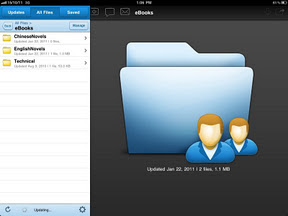
So, now you happily dash to the App Store to download the official Box.Net app only to find out that there's no way to upload file using the app. Only download is supported.


Well, all is not lost.

I've been a Box.net user for more than a year now, and I've never use the official app to do uploading and downloading of files.
Here's how and what I do to upload and download files.

Method 1: Uploading using email attachment
For every folder created in box.net, a designated email address is created.
Any attachment like jpg, doc files attached to an email sent to this email address will be uploaded to the corresponding box.net folder! Ingenious!
However, note that this is potentially unsecured as you don't need any login to use this method.

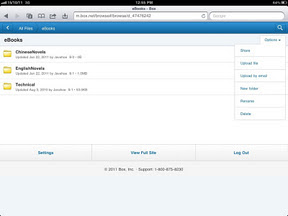
To find out this designated email address, just visit box.net in your safari app on your iPhone or iPad.
Click on your folder of interest, and then click the Options drop-down on the upper right corner. (see the diagram below).


Next click on the "Upload by email". The designated email address will be shown:


This will be the email address to email to for your attachment upload.

Method 2: Using an app with Box.Net Integration
A better way, which is my preferred way is to use a file/folder management app with Box.net integration.
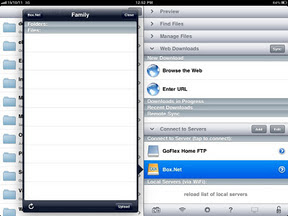
I'm using the excellent Good Reader app.


Once connected to your Box.net account, all the folders in your Box account will be displayed in Good Reader.
From there, you can download file, create folder, upload file from/to your 50GB storage!
One catch here: as iOS only allow app to access the Photo Library and the Documents(invisible to user) subfolder in the app folder itself, the files to be uploaded can only be picked from this folder. To put in files in this folder, you can use the PC iTunes file transfer or "Open In Good Reader" shortcut in other apps that supports the "Open In" shortcut.

Method 3: Buy an Android device, which supports file upload
This is the option I least recommend!
I wouldn't want to sacrifice a better user experience iOS for this feature.

There you have it!
A whopping 50GB cloud storage at your disposal!

- Posted using BlogPress from my iPad -

Friday, July 15, 2011

Now The iPad Can Run Flash Contents and Videos !!

One feature that is always being requested by users of iOS devices is Flash support. However till date, iOS still does not support Flash natively.

Now, things change for the better with the availability a few web browsers that support Flash.

There are at least 3 third party browsers now in the Apple AppStore that support Flash Content:
1) iSwifter
2) Puffin Web Browser
3) Skyfire

Both iSwifter and Puffin Web Browser supports both Flash Interactive contents and videos while Skyfire only support Flash Video.

I'm taking the following Flash Interactive Content-based website, "www.singtelshop.com" as an example.

Here's how it looks like when the URL is run in my iPad's built-in Safari Browser:


I'm stucked at the first screen using Safari Brower.

Here's how it looks when run in Puffin Web Browser:


Yes!! The all-so-familiar Flash content of SingtelShop shows! It's also as interactive as it's on desktop browser.
I would say it's even smoother than on my Galaxy Tab which supports Flash natively!

Well, I do not know if these browser (Puffin or iSwifter) did any conversion prior to serving the contents to the user. But it sure runs like native Flash content, if it's actually not native.

Price-wise, Puffin is not free and I don't see any "lite" version.
However there's a free lite version for iSwifter which runs the Flash contents as smoothly as Puffin.

Note that no Jailbreak is needed to run these browsers.

Now, I wonder why this is not being widely made known to iOS users.

Another reason to get the iPad over Android Tablet.

- Posted using BlogPress from my iPad

Friday, May 27, 2011

My Anticipated iOS 5 Features - Part 4 - Gaming Controller API

One of the usages for my iPhone is like many others, gaming.
And my favourite kind of game has always been soccer gaming.
You have to control the 3D player's movement by the left hand "directional" buttons and right hand "shoot, pass" button.


As the iPhone has no physical buttons like those on the NDS or PSP, controlling by rubbing your fingers over the capacitive invisible buttons can be a pain, and it blocks the images on the screen at times.

I was thrilled when this iControlPad hardware gaming controller for iPhone was announced sometime back. However there's no news for its release to date.


This iControlPad would be any iPhone gamers' dream to own. It's easily seen that quality games on iOS devices are apparent.

However, the iControlPad still does not address full compatibility for all iOS games, as I would think that it uses its own API / codes to interact the game with its hardware buttons. That is, only games that are written using its API can utilise this piece of hardware.

Gaming is a huge market on Apple Appstore. Apple should address this and come out in the upcoming iOS 5, a standard API for game developers to use to develop their games to utilise this standard-based hardware buttons.

This will surely give the PSP a run for its money!

Read also:
My Anticipated iOS 5 Features - Part 3 - Standby Screen Clock
My Anticipated iOS 5 Features - Part 2 - Beaming
My Anticipated iOS 5 Features - Part 1 - USB Mass Storage


- Posted using BlogPress from my iPad

Monday, March 21, 2011

My Anticipated iOS 5 Features - Part 3 - Standby Screen Clock

No, I'm not the only one around that don't wear a watch. When I'm away from my computer, I will rely on my handphone for the time. It is my watch.
I don't remember when I last wear a watch.

In pre-touchscreen handphone era, there's usually this clock display that appear every time you turn off the handphone screen. To view the time, you don't have to turn the set on. The time is there 24/7!

Since the advent of touchscreen handphone, the Clock Display suddenly disappears for unknown reasons! The ONLY touchscreen phone that I've used that sport a standby screen clock is the Palm Treo Pro. (It's still has the best Windows Mobile OS implementations, although the OS itself sucks big time!)


If Palm is able to put in on a touchscreen phone, I don't see why other manufacturers can't.

This standby screen clock is so handy and useful that I really think it should go in iOS 5.

Read also:
My Anticipated iOS 5 Features - Part 2 - "Beaming"
My Anticipated iOS 5 Features - Part 1 - USB Mass Storage

Tuesday, March 15, 2011

My Anticipated iOS 5 Features - Part 2 - "Beaming"

What is "Beaming"?
Long before iPhone got introduced in 2007 by Apple, PDA dominates the gadgets market. One of the neat features of Palm OS PDA is allowing the sending of a contact to another Palm OS PDA by just pressing and hold on to the "Contacts" hard button. No configuration needed, just press and hold for half a second.


As an owner of multiple iOS devices (iPhone 4 and iPad), I currently find it a pain to transfer files and URLs from my iPhone 4 to my iPad and vice versa. I normally resort to using a "cloud" based solution like Dropbox to exchange my files between my iDevices.
However, there's a problem here when there's no internet connection for my iPad. I'm having a WIFI-only iPad.

So, what I'm hoping for in iOS 5 is to have Apple adopting the NFC (Near Field Communication) technology to allow exchange data, files, URLs, etc between iOS devices. This is particular useful in Singapore where majority of the smartphone users are using the iPhone.

So, why not using Bluetooth? Why NFC?
Bluetooth connection still needs a considerable time to establish the link between the 2 devices. NFC needs just 0.1s compared to Bluetooth's 6s.

A major disadvantage of NFC is that the data transfer is about 5 times slower than the Bluetooth transfer rate. But if the uses are just limited to URLs, contact infos or small picture file exchange, the data transfer rate of 424kbit/s for the NFC is really fast enough.

Read also:
My Anticipated iOS 5 Features - USB Mass Storage

Monday, March 7, 2011

My Anticipated iOS 5 Features - USB Mass Storage

I'm going to start off a series of topics on the upcoming iOS 5 features which I very much anticipate.

First off, "USB Mass Storage".

Now, the closest competitor, Android OS is able to mount its file system(SD Card) as a standard "USB Mass Storage" device all along.

Even at the current version 4.2.1 of iOS, Apple is still not opening up this very much needed feature.


I take it that Apple is not going to compromise system instability by opening up filesystem access.

I very much hope that in iOS 5, Apple at least dedicate a single directory, say "/var/media/massstorage" and has its API allowing applications to have access to this particular directory.

Then, allow "USB Mass Storage" capability which points the root to this directory, so that users can copy/read files using the usual USB plug in.

In other words, do not restrict file transfer to just PC iTunes!

Wednesday, December 1, 2010

iPad Bluetooth Keyboard Case


So, I've been using the bluetooth keyboard case for iPad for around 2 weeks.

Initially I would think the keyboard that uses bluetooth to connect to my iPad would prevent the use of a bluetooth earphones simultaneously.

I tried hooking up my Sony Ericsson bluetooth earphones to the iPad and turn on the keyboard at the same time... both worked! No lag as well!

Overall, the keyboard is very useful except for one bad point, in that there's no "Shift" button on the right side. There's only one on the left!

Being a certified typist myself, I find this very inconvenient to capitalise the left hand side keys!

Sunday, November 28, 2010

iOS 4.2.1 on iPad - Compatibility List


I've taken the bold move to jailbreak my iPad on iOS 4.2.1 days ago knowing that it's only a "tethered" jailbreak. Meaning I would have to use my PC to connect up to my iPad to tethered-boot up the iPad using RedSn0w every time I reboot my iPad.


Here's a list of Cydia apps that I've tried on my iPad 4.2.1:

Tested compatible:
1. Activator (ignore the warning message it gives at first launch)
2. Open Notifier (worked fine but Exclamation icon seemed to stuck on status bar)
3. Notifier+ (small icons on lock screen showed, but normal icons didn't)
4. QuickLock 2
5. Install0us (do not mix this up with Installous/Installous 3)

Tested not compatible:
1. SBSettings
2. Notified Pro
3. Lock Info
4. Installous 3 (cannot install as the OS requirement not met)

Do continue the list in the comments section.