Sunday, March 4, 2012

SD Storage Through the Years

While cleaning up my study room, I found this old digital storage card.

It's a Smart Media card with 32 MB storage size. Yes, MB, not GB.

This card was bought around the year 2002. Its size is roughly 10 times that of the current micro SD.

10 years on, and now the card I'm buying now is in the capacity of 32GB, 1000 times bigger than the on I bought 10 years ago!

That is calculated to be an increment of about 100MB per year!

Impressive!


Published with Blogger-droid v2.0.4

Friday, February 17, 2012

My Favourite iOS Game of the Month - Dream League Soccer

I've always been a fan of PC soccer game. And no surprise there that the FIFA series PC game is one of my favourite games.

My current gaming machine is the iPad, to no one's surprise.
And the game I'm hooked to is the excellent "Dream League Soccer" for iPad and iPhone.

It's free and the develop earns when the consumers "buys" the virtual coins using real money and then use these virtual coins to upgrade their players.

Now, I've "advanced" far enough into the game to unlock "legendary" players like Pele, Zidane and Maradona, etc.
And yes, these three are part of my Dream Team now!

One great feature of the game is that it allows uploading of any saved Replays to YouTube.

I will start off by sharing one of my saved Replays with Maradona scoring a superb goal.

More uploads will come in the following days ...

Wednesday, December 28, 2011

My Songs of the Year 2011

These are the three songs that left the best impression on me this year:

李佳微 - 煎熬

She is the winner of a Taiwanese idol talent show.
She shows she can go high in terms of note in this song.
The music video is a controversial one with captured more than a million hits on YouTube.


胡夏 - 那些年

Again, a winner of a singing talent show, he got to sing the theme song of this year big chinese movie hit, 那些年,我们一起追的女孩.
He has a clean and soothing voice.


A-Lin - 无路可退

She got a strong, mid-low voice that need no trending auto-tune to excel.


Tuesday, November 29, 2011

My iPhone / iPad MiniUSB Connector

Recently, Apple released a MicroUSB connector for iOS devices. With that, you can charge and sync your iPhone/iPad/iTouches using MicroUSB cable.
It's still not available in Singapore yet.

Days ago, I stumbled upon this similar connector, but for MiniUSB. Bought it straight away!
It works well using my portable harddisk's MiniUSB cable!


- Posted using BlogPress from my iPad -

Monday, November 14, 2011

Icon Shortcuts on iPhone 4S without Jailbreak

For many, including me, one of the main reasons for jail breaking the iPhone is to install the non-Apple-approved hack "SBSettings" which allows fast toggle to some of the OS's functions such as Bluetooth and WIFI, etc.


As mentioned, this requires the iPhone to be jailbroken.
Currently, there's no jailbreak utility for the iPhone 4S an iPad 2 yet.
Therefore, installing SBSettings is never possible on them.

All is not lost! iOS actually comes with support for URL forwarding function.
E.g. Typing the following URL on your Safari will redirect you to the Bluetooth setting screen directly:
prefs:root=General&path=Bluetooth

We'll just need to assign this action to a launch-able homescreen icon to make it handy. It may not be as direct as a SBSetting Bluetooth toggle, but at least it's a close alternative without jailbreak.

You can use a free app called "Channels" to assign these URLs to launchable icons. However, these icons are launchable from the Channels app itself, not on the homescreen. Anyway, you can see it as a consolidation of the shortcuts in a "folder".


Personally, I use the Bluetooth shortcut a lot to turn on and off the Bluetooth on my iPhone 4S when I use it for my A2DP Bluetooth earphones and Creative A2DP speaker.

The followings are some of the built-in URLs in iOS 5:
About: prefs:root=General&path=About
Accessibility: prefs:root=General&path=ACCESSIBILITY
Airplane Mode On: prefs:root=AIRPLANE_MODE
Auto-Lock: prefs:root=General&path=AUTOLOCK
Brightness: prefs:root=Brightness
Bluetooth: prefs:root=General&path=Bluetooth
Date & Time: prefs:root=General&path=DATE_AND_TIME
FaceTime: prefs:root=FACETIME
General: prefs:root=General
Keyboard: prefs:root=General&path=Keyboard
iCloud: prefs:root=CASTLE
iCloud Storage & Backup: prefs:root=CASTLE&path=STORAGE_AND_BACKUP
International: prefs:root=General&path=INTERNATIONAL
Location Services: prefs:root=LOCATION_SERVICES
Music: prefs: root=MUSIC
Music Equalizer: prefs:root=MUSIC&path=EQ
Music Volume Limit: prefs:root=MUSIC&path=VolumeLimit
Network: prefs: root=General&path=Network
Nike + iPod: prefs:root=NIKE_PLUS_IPOD
Notes: prefs:root=NOTES
Notification: prefs:root=NOTIFICATIONS_ID
Phone: prefs:root=Phone
Photos: prefs:root=Photos
Profile: prefs:root=General&path=ManagedConfigurationList
Reset: prefs:root=General&path=Reset
Safari: prefs:root=Safari
Siri: prefs:root=General&path=Assistant
Sounds: prefs:root=Sounds
Software Update: prefs:root=General&path=SOFTWARE_UPDATE_LINK
Store: prefs:root=STORE
Twitter: prefs:root=TWITTER
Usage: prefs:root=General&path=USAGE
VPN: prefs:root=General&path=Network/VPN
Wallpaper: prefs:root=Wallpaper
Wi-Fi: prefs:root=WIFI


- Posted using BlogPress from my iPad -

Tuesday, October 18, 2011

How I Use iOS Gesture for iPad

With iOS 5 for iPad, it comes with a handy gesture system.
You can use four or five fingers to swipe up while in home screen to bring up the multitasking app bar and swipe left and right to go to next/previous app that was launched earlier on.

Here's one practical example of how I use the gesture on my iPad during my eBook reading session.

I was going to read one my my gadget magazines which has pricing in Indian currency.

I launched my XE Currency iPad app before I fired up eBook reader.


In the magazine, I came across the pricing of a Blackberry Bold 9900. The currency stated is in Indian currency.

Without pressing the home button, I swiped left using four fingers, the XE Currency app returned instantly.


I keyed in the pricing in the India Rupees box, and I got the Singapore dollars equivalent instantly.

Satisfied, I used four fingers and swiped right to bring me back to my last eBook reading location.

This is the kind of great user experience that I can't have in Android tablets!

Neat!

- Posted using BlogPress from my iPad -

Friday, October 14, 2011

The Box in the Cloud with iOS

The hottest Tech news yesterday must be the offering of free 50GB storage for box.net iPhone/iPad users.


I guess that's a competitive move by box.net to compete with iCloud.

So, now you happily dash to the App Store to download the official Box.Net app only to find out that there's no way to upload file using the app. Only download is supported.
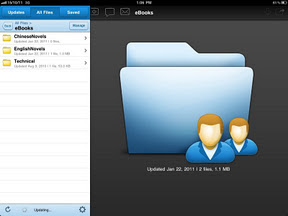


Well, all is not lost.

I've been a Box.net user for more than a year now, and I've never use the official app to do uploading and downloading of files.
Here's how and what I do to upload and download files.

Method 1: Uploading using email attachment
For every folder created in box.net, a designated email address is created.
Any attachment like jpg, doc files attached to an email sent to this email address will be uploaded to the corresponding box.net folder! Ingenious!
However, note that this is potentially unsecured as you don't need any login to use this method.

To find out this designated email address, just visit box.net in your safari app on your iPhone or iPad.
Click on your folder of interest, and then click the Options drop-down on the upper right corner. (see the diagram below).
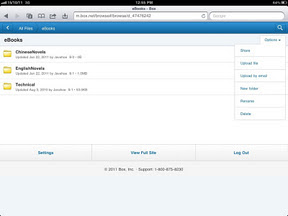


Next click on the "Upload by email". The designated email address will be shown:
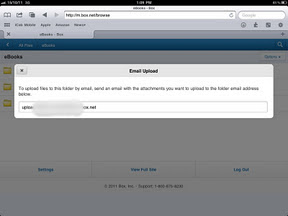

This will be the email address to email to for your attachment upload.

Method 2: Using an app with Box.Net Integration
A better way, which is my preferred way is to use a file/folder management app with Box.net integration.
I'm using the excellent Good Reader app.
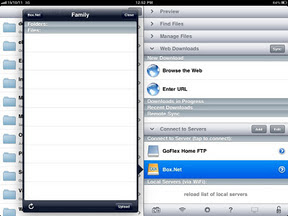

Once connected to your Box.net account, all the folders in your Box account will be displayed in Good Reader.
From there, you can download file, create folder, upload file from/to your 50GB storage!
One catch here: as iOS only allow app to access the Photo Library and the Documents(invisible to user) subfolder in the app folder itself, the files to be uploaded can only be picked from this folder. To put in files in this folder, you can use the PC iTunes file transfer or "Open In Good Reader" shortcut in other apps that supports the "Open In" shortcut.

Method 3: Buy an Android device, which supports file upload
This is the option I least recommend!
I wouldn't want to sacrifice a better user experience iOS for this feature.

There you have it!
A whopping 50GB cloud storage at your disposal!

- Posted using BlogPress from my iPad -